BeatmeterGenerator
Tools to generate beatmeters, a kind of visual music beat indicator, for videos comprising - a visual editior to mach beats in music - a generator for wav-files underlining the beats - a generator for image sequences with the beatmeter animation
Summary
| Latest Version | Unknown |
|---|---|
| License | Unknown |
| CI Status | Failing |
| Stars | 15 |
| Forks | 10 |
| Open Issues | 0 |
| Last Commit | 2025-12-27 |
| Downloads | 0 |
| Last Indexed | 2026-09-06 06:05 |
Installation
nimble install BeatmeterGenerator
choosenim install BeatmeterGenerator
git clone https://gitlab.com/SklaveDaniel/BeatmeterGenerator
OS Compatibility
| Platform | Linux | macOS | Windows | FreeBSD | OpenBSD | NetBSD | Android | iOS | WASM | Embedded |
|---|---|---|---|---|---|---|---|---|---|---|
| BeatmeterGenerator | ✓ | ✓ | ✓ | - | - | - | - | - | - | - |
Source
| Repository | https://gitlab.com/SklaveDaniel/BeatmeterGenerator |
|---|---|
| Homepage | https://gitlab.com/SklaveDaniel/BeatmeterGenerator |
| Registry Source | gitlab |
README
Beatmeter Generator
0.3.0
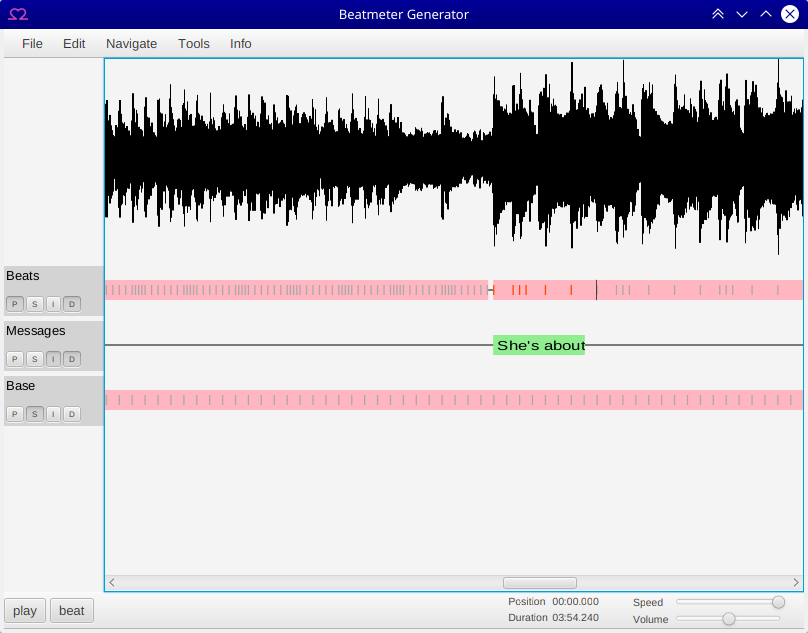
A graphical editor to generate so called beatmeters for videos. The editor lets you edit beats and beat patters visually and then generade an audio track and image sequences for video generation (one image per frame).
Please read through the features, basic workflow and hints to get a better idea of how to use the editor.
Example Images




Features
- Generation of an audio track with beat sounds
- Generation of video (image sequences) for an animated beatmeter
- Many options to customize beatmeter style (colors, speed, positions, fonts, custom images)
- Multiple custom beat sounds
- Visiual editing of beats
- Multiple beat tracks
- Notification messages displayed in the generated video
- Highlighted beats in the beatmeter to indicate beat changes
- Flexible beat groups
- Groups with constant BPM
- Groups repeating a (custom) beat pattern
- Snapping of beats and beat patterns to a base beat.
- Copy and paste/Drag and Drop of beats between tracks or different projects
- BPM detection (does detect the BPM but the first beat has to be aligned manually)
- Undo/Redo
- Zooming
Basic Workflow
- I recommend using a mouse, using a laptop touch pad can give you too little control.
- Select File->Load Audio and load a .wav file with the audio of your video. It has to be a 16bit signed int wav audio files, which most .wav files are. The .wav file will be loaded completely into memory, so don't try to load the audio track of a complete 1h video but split it up one song at a time.
- Select Edit->New Tracks to generate three new beat tracks.
- You can name the tracks using the context menu on the left over the gray areas, e.g. name the tracks "Beats", "Messages", and "Base".
- Open the context menu on the base track and select New BPM Pattern
- Drag and scale the pattern to a larger part of the song with clearly audible beats. (You can scale patterns at the end of the box when the scale cursor appears). Usually, beat detection is quite robust, so selecting a large part of the song or the complete song usually works fine. Usually, larger is better but takes more time.
- Open the context menu on the pattern and select "Detect BPM". The bpm of the corresponding part of the song will be detected and set as bpm of the pattern. You can see it afterwards in the context menu.
- Drag the pattern to the first beat and scale it to cover the complete song.
- Press the "S" button in front of the base track to select the track for snapping.
- Press the "D" button in front of the messages and beats tracks to select them to be displayed in the generated video.
- Press the "P" button in front of the beats track to select if to be played in the generated audio.
- Open the context menu on the beats track, select "Common Patterns->123-" to insert a simple 123-pattern.
- Drag and scale it, it will snap to the positions of the snap track.
- There is a black bar which controls the duration of the repeated pattern.
- Press CTRL can drag it around to scale the pattern. This allows you to adjust the pattern to different speeds.
- If you want to modify the pattern, you can drag the beats and the duration bar arround and delete and insert beats.
- You can hold the 1-9 keys down while dragging or scalling to snap to 1 to 9 additional positions.
- You can hold the 0 key down while dragging or scalling to disable snapping temporarily.
- Select "Tools->Beatmeter Settings" to adjust the style of the beatmeter.
- Choose the width and frame rate to match your video, you can leave the other settings as they are for now.
- Open the context menu on the messages track and choose "New Message". Drag and scale it appropriately. You can change the message from the context menu.
- Select "Tools->Generate Audio" and "Tools->Generate Video" to generate both.
- Open a video editing tool and import your video and the generated audio file. Import the beatmeter image sequence at one image per frame (most video editing tools can do that).
- Line them all up and position the beatmeter video track appropriately.
- Have fun.
Hints
- Zoom in and out by pressing CTRL and scrolling
- Press shift to scroll up and down
- Most things have context menus to change settings
- You can scale a beat pattern by pressing CTRL and tracking the black bar.
- You can scale beat and bpm patterns at the end.
- You can drag beats between tracks and between tracks and beat patterns.
- Press control when dragging to copy
- You can copy and paste from the context menu
- Use the buttons in front of the tracks to select tracks for display, playing, recording of beats and snapping.
- You can press the beat button at the bottom to insert a beat while playing the song.
- You can reduce playback speed using the slider at the bottom.
- You can double click on the wave form at the top to move the playback position or drag the red line.
- You can press 1-9 to get additional snap positions between the beats from the snap track. Press 0 do disable snapping.
- Copy and Dragging works between multiple instances of the editor, so you can start the editor two times and copy beats between them.
- You can chose a custom beat sound from the context menu on the left of the tracks.
- You can select to highlight single beats, the first beats of patterns, or the first repetition of a pattern. These beats will be highlighted in the generated beatmeter.
- When saving, paths refering to external files (e.g. audio files) will be stored relatively if they are in the same directory or a subdirectory.
- Marking a track with "I" sets it as insert target: you can now insert and paste to that track at the current position using short-cuts
New features in 0.3.0 and 0.3.1
- Support for Java 11
- Faster and nicer Waveform
- Shortcuts for common functions (move position, insert, copy, ...)
- Mark track with "I" and copy at current playback position
- List of recently accessed files
- File dialogs open at location of save file
Download
Windows
There is a windows installer available (64bit only) at:
It is larger than the platform independent build below but it contains the Java runtime as well. It should work on Windows 7 and later.
Platform independent version
A platform independet .jar file can be downloaded at: beatmeter-generator.jar
You will need the Java 11 JDK (separate JRE has been droped by Oracle) to run the application. You can download it at: Oracle Java 11
After installing the JRE you should be able to start the jar by double clicking on it.
If you can't try starting it from the command line using java -jar beatmeter-generator.jar.
Other Java Versions
Beatmeter Generator should run on any JRE since Java 8, but it has not been tested on these versions.
Screenshot
Ideas
- Counters
- Speedup/Slowdown Beat Pattern